Using Katago with Sabaki on MacOS
Intro
I have felt that I should be able to run my own Go AI engine for a while now, given my background coupled with my obsession with the game. It turns out his is pretty simple on a MacOS machine with homebrew, so here it is. I have no idea how performant this is or what hardware it is actually using on my machine, but it seemed to play a decent enough game against me (though that may not say much given my rating 😅).
How-To
1. Get Katago
brew install katago
2. Install your default config
The brew installation of katago comes with some models out of the box, as well as a default config. We will want edit that default config based on a tuning run, so first install it into the default config location at ~/.katago/.
$ brew list katago # <---- Show locations of all the files
/opt/homebrew/Cellar/katago/1.16.4/bin/katago
/opt/homebrew/Cellar/katago/1.16.4/sbom.spdx.json
/opt/homebrew/Cellar/katago/1.16.4/share/katago/ (29 files)
$ mkdir -p ~/.katago/
$ cp /opt/homebrew/Cellar/katago/1.16.4/share/katago/configs/gtp_example.cfg ~.katago/default_gtp.cfg
3. Tune your Katago variables
We need to tune the number of threads that katago will use:
$ katago benchmark
This will suggest a value for the numthreads variable in the config. Alter your default config to have this value set appropriately.
Your katago installation should now be set up, so running
$ katago gtp -model /opt/homebrew/Cellar/katago/1.16.4/share/katago/kata1-b18c384nbt-s9996604416-d4316597426.bin.gz
should start the gtp server and allow you communicate with it in the terminal.
4. Install Sabaki
Get the DMG from the link to Github on the Sabaki homepage and install it. You will probably need to ignore security by attempting to install it, failing, then accessing your system settings to allow it anyway. 😈
5. Configure the engine in Sabaki
Open Sabaki, then
- Toggle the engines sidebar using the top bar navigation if it is not visible
Engines→Show Engines Sidebar. - Click on the “Play” symbol on the Engines Sidebar and select
Manage Engines - Click
Addto add a new engine - Fill in the relevant details (see screenshot for example values, repeated here for ease of copying:)
/opt/homebrew/bin/katago
gtp -model /opt/homebrew/Cellar/katago/1.16.4/share/katago/kata1-b18c384nbt-s9996604416-d4316597426.bin.gz
time_settings 0 5 1
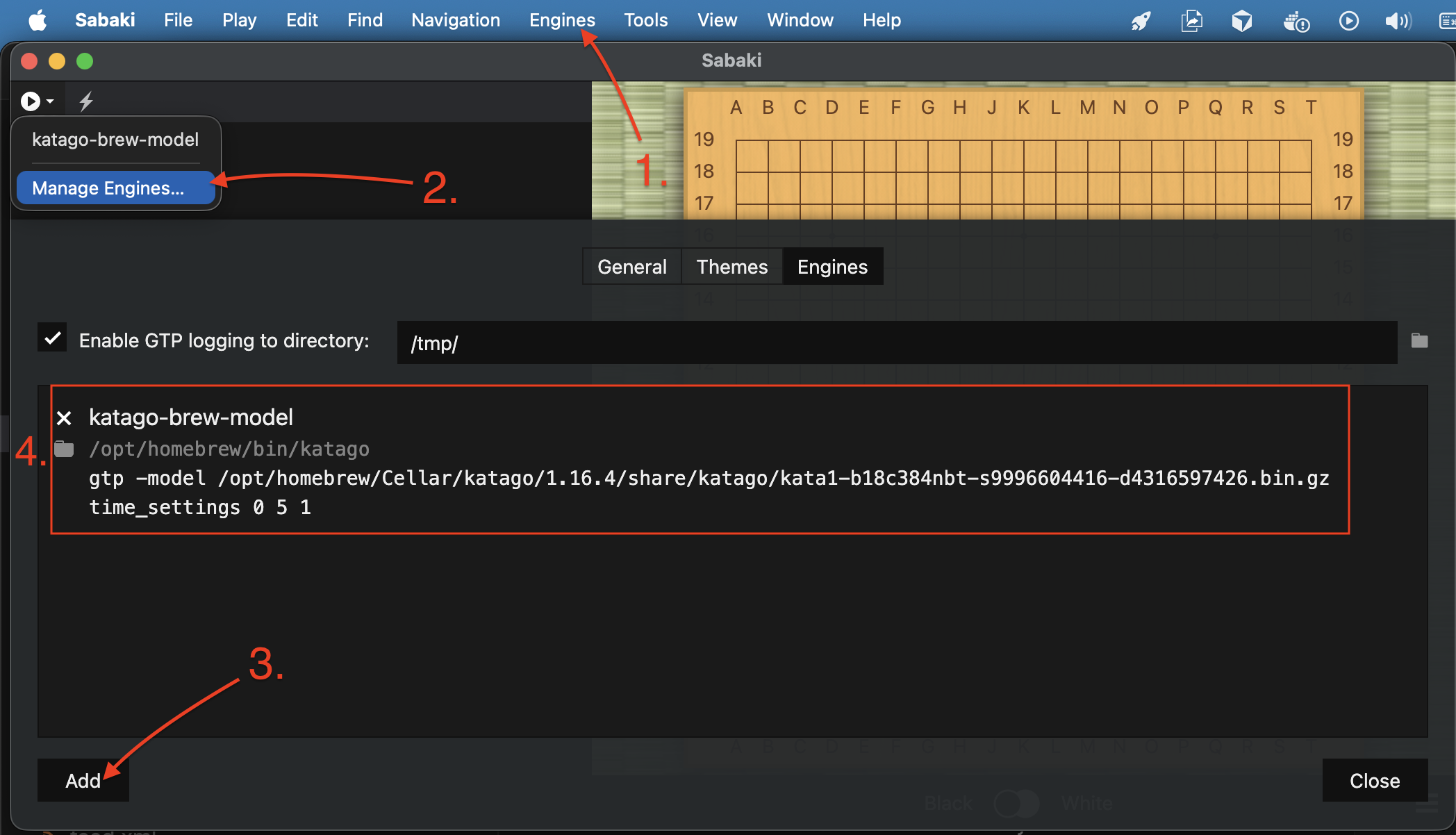
6. Start a game against your new nemesis
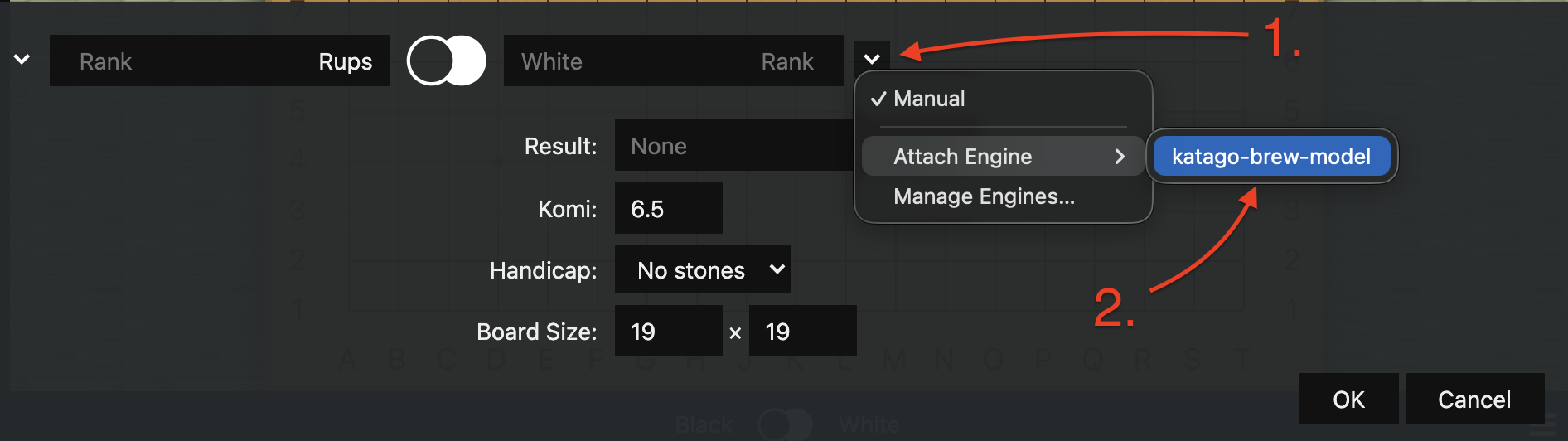
In Sabaki, hit File → New, then set either black or white to be the engine using the dropdown.
At any point, you can get a heat-graph by clicking Engines and Toggle Analysis. By default for me this was showing the win rate, which I find quite incomprehensible at my level. You can switch it to be score lead instead with the menu option View → Heatmap → Show Score Lead.
Summary
Hopefully you should now be set up to have some fun games (read “Get destroyed by the AI”) and analysis from the strongest open-source engine!
Thanks to Jim Plays Go for a video where they set this up in Windows which gave some pointers.